How to add subtitles to videos ?
If you would like to create and add permanent subtitle to videos, look at this.
With Total Video Converter, you can insert lots of subtitles formats ( for example .srt . sub .ssa .ass .smi .psb .tex .idx etc ) into video files that will appear on ANY video player, iPod, PSP, Zune, 3GP, Apple TV, iPhone, Nokia, Sony, BlackBerry, even on the stand-alone DVD / XviD player. E.M. Total Video Converter allows to recompress the whole file and to add subtitles as a part of the video (to encode subtitles together with video).
Also, the videos are available in various video formats: AVI, MPEG, MPEG2 TS, MP4, MKV, WMV, ASF, 3GP, 3G2, GIF, SWF, H.264/ MPEG-4 AVC, H.264/ PSP AVC Video, MOV, FLV etc. Depending on what your subtitle expectations are and which computing platform you use, adding a subtitle track to your video project doesn’t need to cost anything.
Here is a quick and simple guide to add subtitle to .avi file that you would like to have harcoded subtitles and convert the whole file to blackberry mp4.
(Of course, it is not limited for avi to mp4 only, you can add subtitles in any language to any video files and convert them to any other video formats). It all depends on you !!
Step 1
Download E.M. Total Video Converter.
You can download free trial Version here: Total Video Converter for Mac or Total Video Converter . Then install and lauch this program
Step 2 Load the video files
Click the “New Task” button, and import the video files you want to convert to the program. TVC supports batch conversion, so you can load several video files at one time.
Tips: you can preview the video files in the right preview monitor.
Step 3 Select output formats.
After loaded the files, then it will pop up a window “Please select the format to be converted to” which allows you to select various output formats. here we will select “Video File” and then click “Blackberry mp4” button.
Tips: The Videos to Blackberry mp4 Converter allows setting different output formats according to different files.
Step 4 Customize output parameters.
The avi Videos to mp4 Converter allows you to customize the “Filter” and “Settings” on the left top corner. It helps you set relative “Audio Option”, “Video Option”, “Video Resize” and “Video Crop& pad”
Step 5 insert subtitles
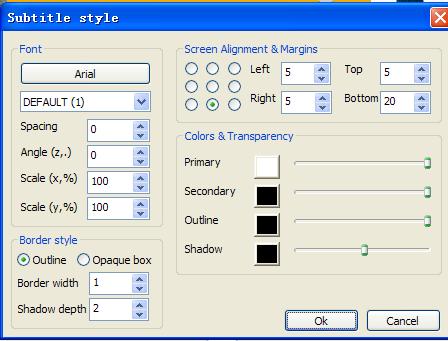
pls click ” filters” . Pls insert the subtitles in any language which you would like to add to the video or movie.
Step 6 Start the avi Videos to blackberry mp4 conversion
Wait several minutes (or hours) while video file with subtitles is being created.
